
AI 对话导出与 WordPress 展示
我希望把我在这些LLM当中的对话分享在博客上,分享完整的“解题思路”。
Web 输出端
gemini/chatgpt web端的数据存储方式非常拧巴,它们的产品形式更多还是希望将分享控制在产品内部。
不过这一步的数据清洗已经有不少现成的工具。而且未来保证和开发过程的延续性,它们输出的txt md格式可能各有各的数据格式,但是输出的json基本上是符合openai api/claude api的(我们作为对话历史穿给接口的形式)。
我目前用的是AI Exporter
解析端
wordpress上配置了一个自定义Block(直接用 “自定义 html” 也能实现)
安装插件 Lazy Blocks 和 WPCode Lite(存css格式和js加载)
Lazy Blocks
下载下面的json,在 Lazy Blocks当中导入:
[
    {
        "id": 49,
        "title": "AI chat",
        "icon": "<svg width=\"24\" height=\"24\" viewBox=\"0 0 24 24\" xmlns=\"http:\/\/www.w3.org\/2000\/svg\">\n\t<rect opacity=\"0.25\" width=\"15\" height=\"15\" rx=\"4\" transform=\"matrix(-1 0 0 1 22 7)\" fill=\"currentColor\" \/>\n\t<rect width=\"15\" height=\"15\" rx=\"4\" transform=\"matrix(-1 0 0 1 17 2)\" fill=\"currentColor\" \/>\n<\/svg>",
        "keywords": [],
        "slug": "lazyblock\/ai-chat",
        "description": "",
        "category": "lazyblocks",
        "category_label": "lazyblocks",
        "supports": {
            "customClassName": true,
            "anchor": false,
            "html": false,
            "multiple": true,
            "inserter": true,
            "reusable": true,
            "color": false,
            "layout": false,
            "shadow": false,
            "spacing": false,
            "dimensions": false,
            "typography": false,
            "lock": true,
            "align": [
                "wide",
                "full"
            ],
            "ghostkit": {
                "effects": false,
                "position": false,
                "spacings": false,
                "frame": false,
                "transform": false,
                "customCSS": false,
                "display": false,
                "attributes": false
            }
        },
        "controls": {
            "control_ae18364cdc": {
                "type": "text",
                "name": "text-control",
                "default": "",
                "label": "Text Control",
                "help": "",
                "child_of": "",
                "placement": "inspector",
                "group": "default",
                "width": "100",
                "hide_if_not_selected": "false",
                "required": "false",
                "translate": "false",
                "save_in_meta": "false",
                "save_in_meta_name": "",
                "placeholder": "",
                "characters_limit": ""
            },
            "control_b37af54ca2": {
                "type": "code_editor",
                "name": "chat_json",
                "default": "",
                "label": "chat json",
                "help": "",
                "child_of": "",
                "placement": "content",
                "group": "default",
                "width": "100",
                "hide_if_not_selected": "false",
                "required": "false",
                "translate": "false",
                "save_in_meta": "false",
                "save_in_meta_name": "",
                "placeholder": "",
                "characters_limit": ""
            }
        },
        "code": {
            "output_method": "html",
            "editor_html": "",
            "editor_callback": "",
            "frontend_html": "<div class=\"ai-chat-wrapper\"><\/div>\n<script>\n(function() {\n    \/\/ 你的 JSON 数据\n    const chatData = {{{chat_json}}};\n\n    const currentScript = document.currentScript;\n    const container = currentScript.previousElementSibling;\n    \n    if (!chatData || chatData.length === 0) return;\n    \n    chatData.forEach(item => {\n        const isUser = item.role === 'user';\n        \/\/ 兼容 content 或 contents 字段\n        let rawContent = item.content || item.contents || \"\";\n        let bubbleHTML = \"\";\n\n        \/\/ --- 数据解析核心 ---\n        if (typeof rawContent === 'string') {\n            bubbleHTML = typeof marked !== 'undefined' ? marked.parse(rawContent) : rawContent;\n        } else if (Array.isArray(rawContent)) {\n            rawContent.forEach(block => {\n                if (block.type === 'text') {\n                    \/\/ 解析文字 Markdown\n                    const text = block.text || block.content || \"\";\n                    bubbleHTML += typeof marked !== 'undefined' ? marked.parse(text) : text;\n                } else if (block.type === 'attachment' && block.attachment) {\n                    \/\/ 解析图片附件\n                    const imgUrl = block.attachment.url;\n                    const imgName = block.attachment.name || \"image\";\n                    bubbleHTML += `<div class=\"ai-xt-img-wrapper\"><img src=\"${imgUrl}\" alt=\"${imgName}\" loading=\"lazy\" \/><\/div>`;\n                }\n                \/\/ 自动忽略 'thinking' 等其它类型\n            });\n        }\n\n        \/\/ --- 生成 DOM ---\n        const row = document.createElement('div');\n        row.className = 'ai-xt-row ' + (isUser ? 'ai-xt-user' : 'ai-xt-bot');\n\n        const avatar = document.createElement('div');\n        avatar.className = 'ai-xt-avatar';\n        avatar.innerText = isUser ? 'U' : 'AI'; \n\n        const bubble = document.createElement('div');\n        bubble.className = 'ai-xt-bubble';\n        bubble.innerHTML = bubbleHTML;\n\n        if (isUser) {\n            row.appendChild(bubble);\n            row.appendChild(avatar);\n        } else {\n            row.appendChild(avatar);\n            row.appendChild(bubble);\n        }\n        \n        container.appendChild(row);\n    });\n})();\n<\/script>",
            "frontend_callback": "",
            "show_preview": "always",
            "single_output": true
        },
        "style": {
            "block": "",
            "editor": ""
        },
        "script": {
            "view": ""
        },
        "styles": [],
        "condition": []
    }
]
WPCode
添加这两段 snippets
ai chat styles
Marked.js
Usage
大功告成,现在撰写文章的时候只需要选择添加区块,找到 AI chat。然后在生成的区块编辑器的CHAT JSON当中,直接粘贴导出的对话记录json即可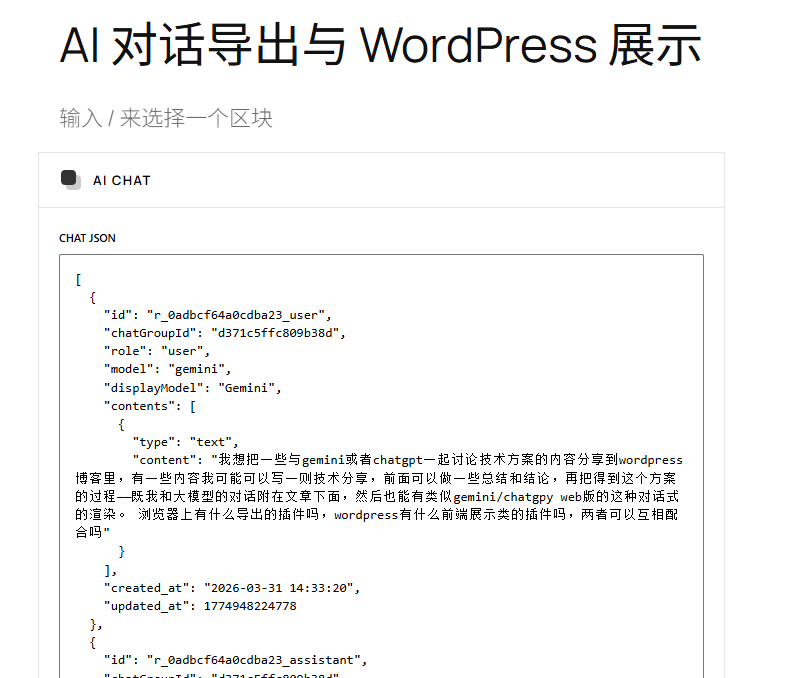
效果展示
这篇完整的对话丢了,下面的记录是上面的方案讨论进行到一半的内容